 online manual
LUMIN P-Series
LUMIN P2 & P1 connections
LUMIN P2 and P1 differ from the majority of other LUMIN players by including digital and analogue inputs.
Inputs are highlighted on the rear panel with a dark background to the text.
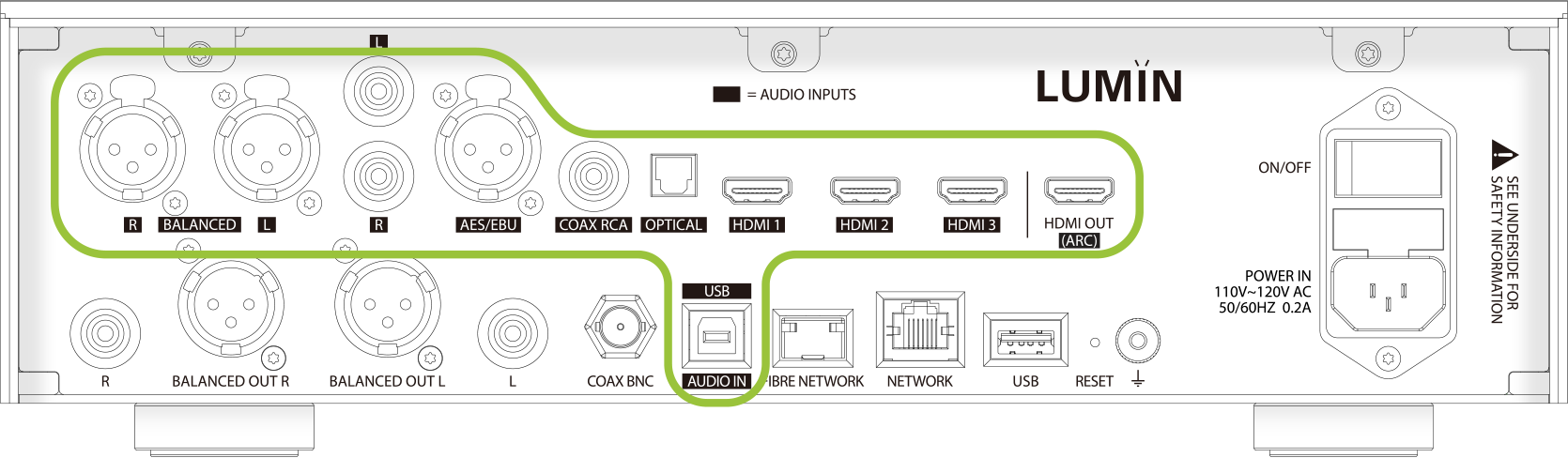
Power, network, audio outputs and storage
Excluding these inputs, LUMIN P2 and P1 have similar connections to other LUMIN models and most of the standard cabling instructions apply to P2 and P1 too.
See cabling instructions for all LUMIN models here.

LUMIN P-Series also feature a fibre networking port. See the seperate guide to Fibre Networking here.
Input to output possibilities
LUMIN P1 can route all inputs to the analogue outputs, which is the most common configuration.
The following diagram shows which inputs can be routed to which outputs:
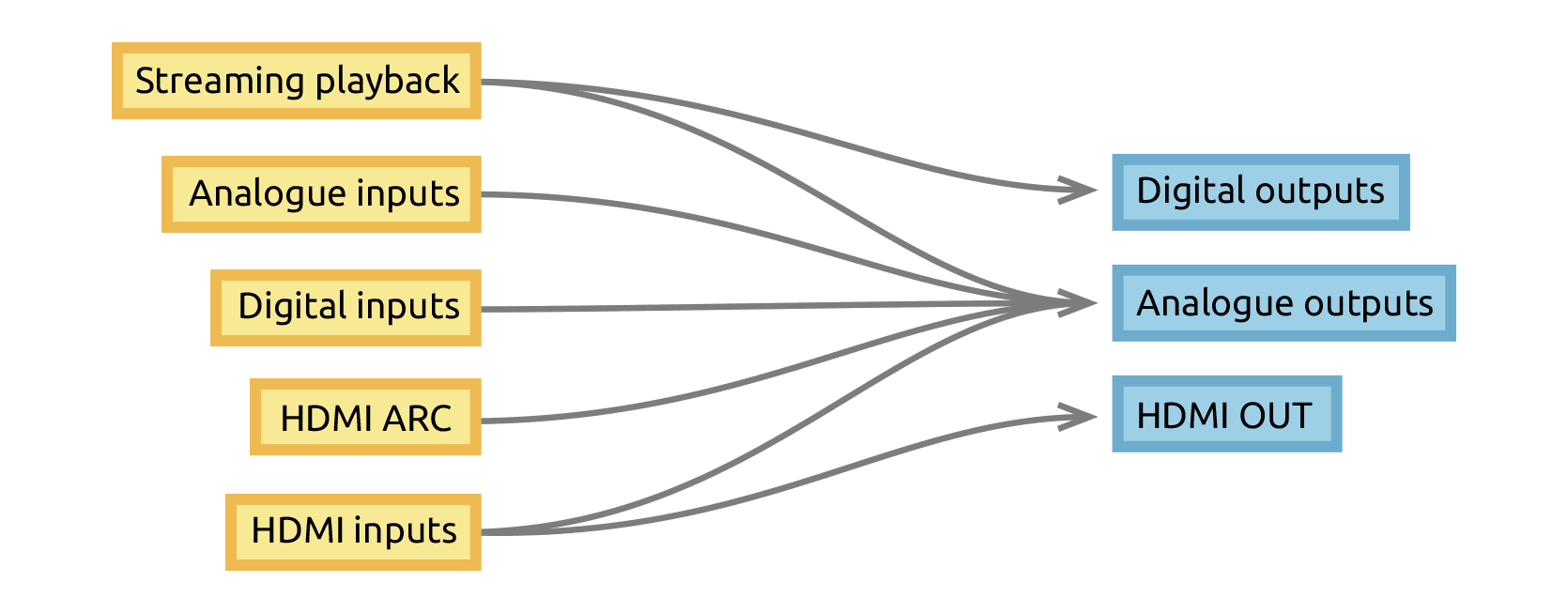
Routing is handled automatically and requires no App configuration.
Connecting digital audio sources
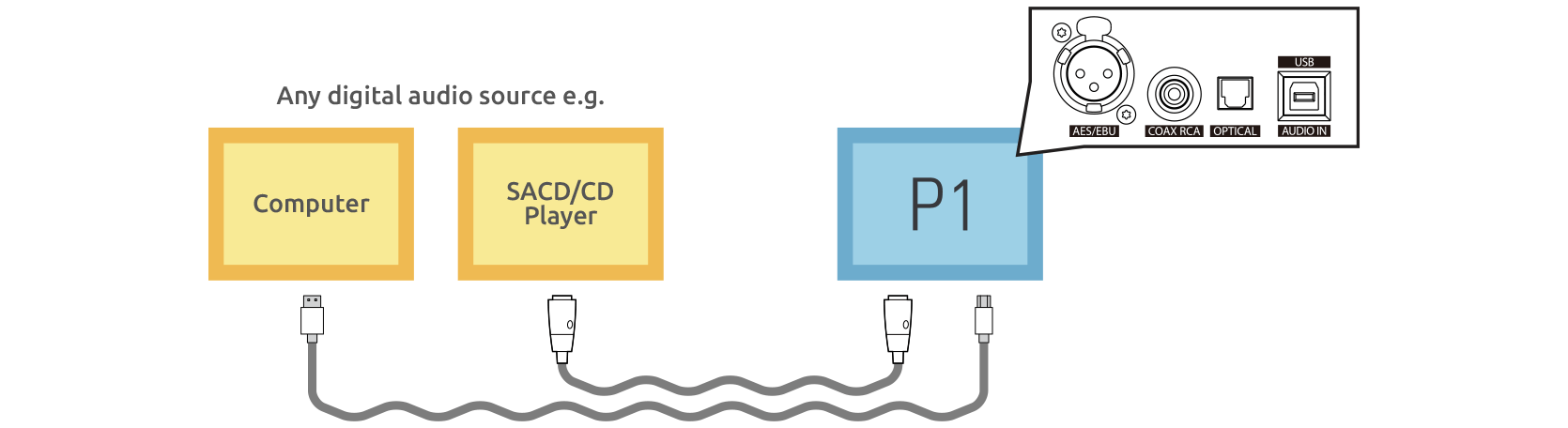
Connect your digital sources to LUMIN P1 using the digital input ports.
Ensure that your digital devices are set to deliver a compatible signal to LUMIN P2/P1 by referring to the table below:
| Digital input specification | |
|---|---|
| USB | USB Audio Class 2 Compatible |
| WINDOWS 10 (Release 1703 or above) / Mac OSX or above | |
| DoP128 (DSD over PCM) | |
| PCM 44.1–384 kHz, 16–32-bit, Stereo | |
| SPDIF (AES/RCA/Optical) | PCM 44.1 kHz–192 kHz, 16–24-bit |
| DSD64 | |
| DoP64 (DSD over PCM) | |
Note: HDMI is not suitable for digital audio input.
Connecting analogue audio sources
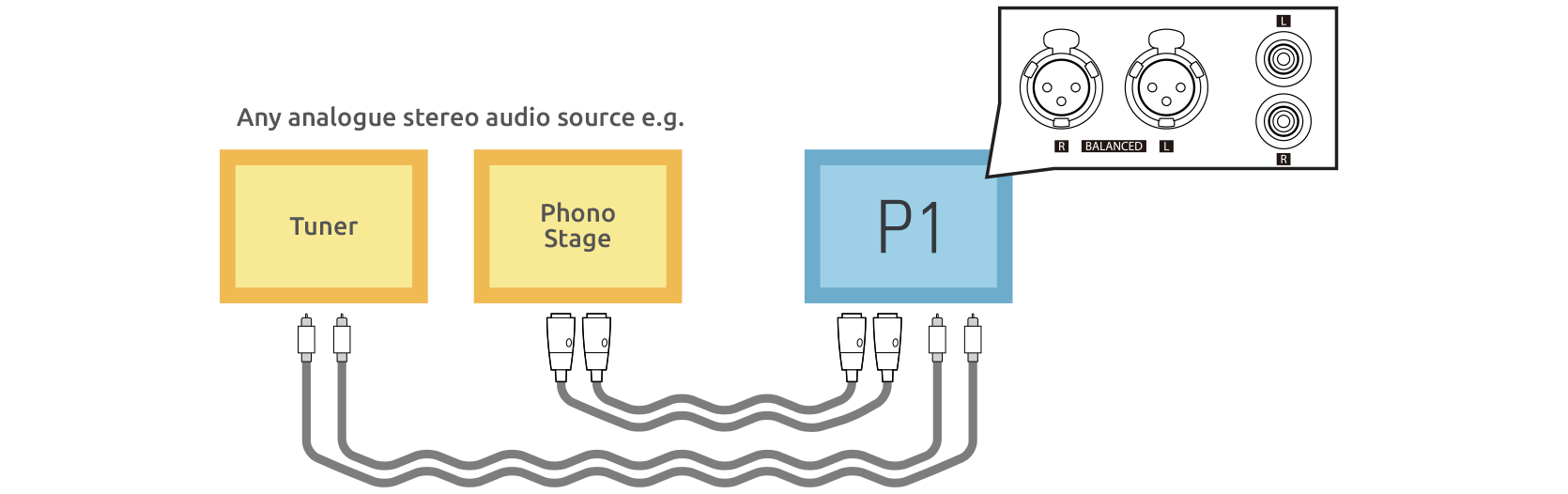
Connect your analogue stereo sources to LUMIN P2/P1 using the analogue input ports.
Please ensure partnering equipment is compatible:
| Analogue input specification | |
|---|---|
| XLR balanced | 6 Vrms. Pin 2 Hot |
| RCA single-ended | 3 Vrms |
Connecting video sources and display
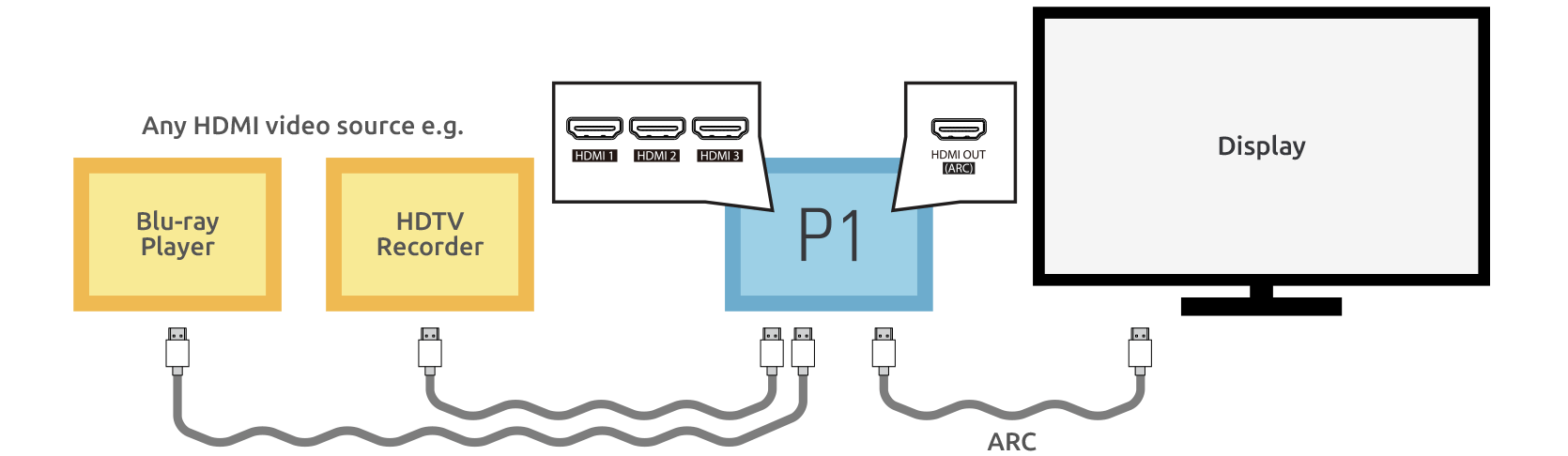
Connect your video sources to LUMIN P2/P1 using the HDMI input ports and connect your display to the HDMI output (ARC) port.
Ensure that your HDMI cables are suitable for the resolution of your sources. HDMI 2.0 recommended.
In this configuration, all HDMI audio is output to the analogue output ports of LUMIN P2/P1, while video is passed through to the display.
When the display is used as the video source (e.g. while watching terrestrial television, or when using an app on the TV), LUMIN P2/P1 will receive the audio via HDMI ARC and output that over the analogue output ports.
CEC Volume Control: If HDMI ARC CEC is enabled in LUMIN Settings and on your display device (sometimes called proprietary names e.g., Anynet+, SimpLink, BRAVIA Link, etc), you can use your display's remote control to adjust the volume and mute settings when using the HDMI ARC input.
| HDMI specification | |
|---|---|
| Audio | HDMI 2.0 specification compatible |
| 2-channel PCM audio decoding | |
| Dolby Atmos passthrough | |
| DTS passthrough | |
| ARC compatible | |
| ARC CEC volume and mute control | |
| Video | HDMI 2.0 specification compatible |
| HDR passthrough | |
| Dolby Vision passthrough | |
HDMI video source settings for P2/P1 compatibility
LUMIN P-Series are stereo only. They cannot decode multichannel audio or Dolby/DTS audio.
Because of this, when connecting video devices (TVs, games consoles, Blu-Ray players, set-top boxes, etc) to LUMIN P2/P1 using HDMI, they may have to be configured before audio will be heard.
For most HDMI video devices this will include the following:
| Source HDMI output settings | |
|---|---|
| Output format | PCM (because P2/P1 cannot decode Dolby or DTS) |
| Dolby/DTS output | OFF |
| Downmix | Stereo |
Notes:
Wording varies greatly between manufacturers and devices. Please consult your source's manual.
The above only applies if LUMIN P2/P1 is being used as a pre-amplifier and not if audio is being passed through to another audio decoding device for amplification.